Lab 01: ARP
Table of contents
Introduction
This lab serves as an introduction to networking and the basics of network security. Throughout this lab, you will generate, capture, and monitor network traffic, to understand the basic network protocols running at the data link and network layers. At the end, you will exploit the nature of the Address Resolution Protocol (ARP) to convince a victim machine that a non-existing device exists on the network.
Logistics
In addition to the tools we set up in the prelab, you will need the following:
- Wireshark to visually see packets and protocols.
- Install this on your local machine, so you can see things visually.
If you are comfortable with command line, you can also use
tsharkto observe the same packets and protocols, directly on the server machine.scporrsyncwill prove to be useful to obtain packet captures from the server and download them on your local machine. They should be installed by default on your Linux distribution that you are running.
Learning objectives
After completing this lab, you should be able to:
Identify the data link and network layer protocols.
Capture traffic on a network using
tcpdump.Examine network packets captured on the wire.
Getting the config
You can find the starter setup for this lab under the 01_Lab01 directory of the csse341-labs repository. If you have set up your private repository correctly, you can fetch the latest version of the labs using the following sequence of commands:
Synchronize with the labs remote using
git fetch upstream.Pull the latest changes from the
mainbranch of the class repository:$ git pull upstream mainPush the starter setup to your repository so you can start modifying it:
$ git add 01_Lab01
$ git push origin main
Generating your .env file
Before we spin up our containers, there are some configuration variables that we must generate. To do so, please run the gen_env_file.sh script from the lab repository directory as follows:
$ ./gen_env_file.sh
If run correctly, you will find the following new files:
.env(hidden file - usels -alto see it) contains yourUIDandGIDvariables.connect_*.sha utility script to connect to each container in this lab.
Network topology
In this lab, we will be working with three machines connected to the same local network. They will live on the same subnet and all can access each other directly. The machines are:
hostAwith IP address10.10.0.4hostBwith IP address10.10.0.5attackerwith IP address10.10.0.13
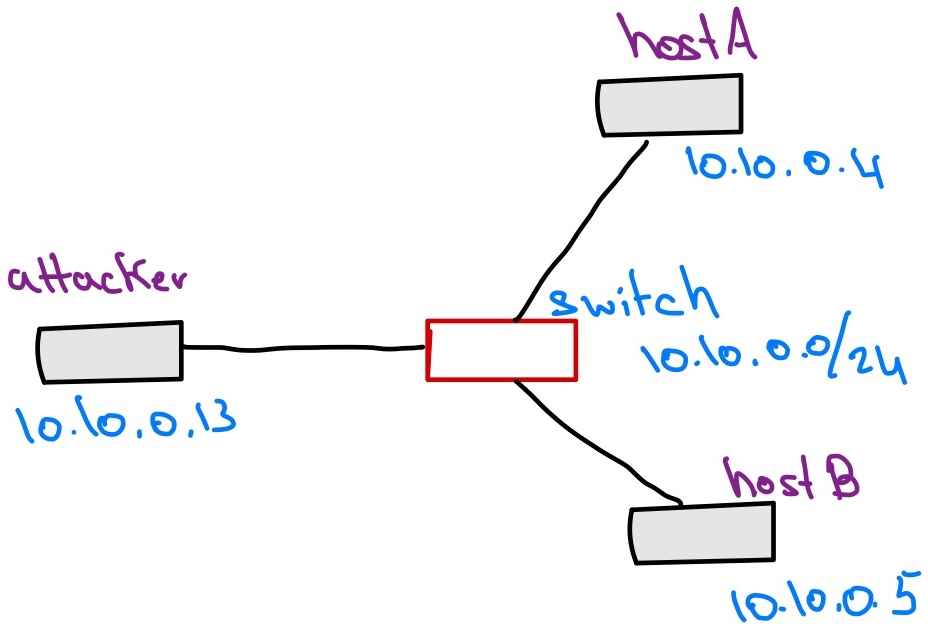
1. The ARP protocol
In this experiment, you will need at least three terminal windows open, good practice to hone you tmux skills.
First, let’s bring the experiment up using:
(class-server) $ docker compose up -d
Once the experiment is up, have at least three terminal panes open in lab1 directory.
{: .highlight } Recall that you could use the dcupd alias to bring up your environment. It serves the same purpose as docker compose up -d.
Capturing packets
First, we’d like to capture some packets on the network. To do so, we will make use of the tcpdump utility, already backed into the class containers. We will capture traffic on hostA for this first experiment.
Recall that to access one of the containers, you can use:
docker container exec -it hostA /bin/bash
Note that all containers are running a stripped down version of kali-linux. You will need two terminal windows on hostA and one on hostB.
On hostA, start a packet capture and dump the captured packet onto the volumes mounted directory as follows:
(hostA) $ tcpdump -i eth0 -w /volumes/hostA.pcap arp or icmp
This will ask tcpdump to listen on interface eth0, watch for two specific protocols that we care about, and write the captured packets into the file /volumes/hostA.pcap. Note that the terminal window will freeze after you start tcpdump, that is normal as it is running and waiting for packets to come in.
{: .highlight } If you’d like to stop tcpdump for any reason, simple hit C-c or ctrl and c on your keyboard in the terminal window where tcpdump is running, it will stop, write out a summary, and save the file /volumes/hostA.pcap.
Grab another terminal on hostA, and first, clear up some local caches to make sure we can grab all the packets we care about.
(hostA) $ ip -s -s neigh flush all
Once that completes, let’s try to ping hostB and see what packets can we capture. We will ping hostB twice.
(hostA) $ ping -c2 hostB
Now stop tcpdump by selecting that pane and hitting C-c, tcpdump will print out however many packets it was able to capture with the filter that we gave it. On my end, here’s what the output was when I stopped tcpdump, your might vary depending on some timing issues.
tcpdump: listening on eth0, link-type EN10MB (Ethernet), snapshot length 262144 bytes
^C6 packets captured
6 packets received by filter
0 packets dropped by kernel
{: .warning } Anytime you want to repeat this experiment, please make sure to clear the cache using ip -s -s neigh flush all, otherwise, you might not see everything we are looking to see here.
Reading the packet capture
Now, you can go and read the packet capture, you can use one of two tools to do so: tshark or wireshark.
{: .warning } If you are not familiar with tshark, I would recommend that you get started using Wireshark. It a lot easier to use, and it would be helpful to see the packets visually, and expand them to see their inner details.
Reading with tshark
tshark is a command line tool that allows you to do packet captures and reading of already captured packets. We will use it for the last purpose in this class and resort to tcpdump for the first.
To read the .pcap file generated from the previous exercise, on the class server machine, navigate to the volumes/ directory under lab1, you should see the file hostA.pcap show up there.
To read it using tshark, use the following:
(class-server) $ tshark -r hostA.pcap
...
Reading with Wireshark
To view the packet capture with Wireshark, you will need to download a copy of the pcap file onto your local machine from the class server.
In what follows, we make the following assumptions:
You have configured
sshauthentication using a public/private key pair.You created an
sshconfig file and added a rule callednetsecfor accessing this class’s server. If you have not done so, please go back to the guides page and do these two steps.
From your local machine, grab a terminal window (make sure you’re running a *nix flavor, WSL2 will do or macOs). Create a new directory, I’ll call it data using mkdir data/ and change into it (cd data/).
Then in there, grab a copy of the pcap file from the server using:
(local) $ rsync -e ssh -Paz 'netsec:~/PATH_TO_YOUR_LAB_REPO/volumes/*.pcap' .
Note that you will need to replace ~/PATH_TO_YOUR_LAB_REPO/lab1/volumes/ with the path to your volumes directory on the class server.
This will sync all pcap files on the server with the ones you have locally, fetching only the ones that have changed.
To make things faster and avoid retyping this command multiple times, I suggest you put it in a script and then call the script. Create a script, let’s call fetch_pcaps.sh and put the following in it:
#!/usr/bin/env bash

rsync -e ssh -Paz 'netsec:~/PATH_TO_YOUR_LAB_REPO/volumes/*.pcap' .
Make the script executable using chmod +x ./fetch_pcaps.sh and then you can grab those pcap files using ./fetch_pcaps.sh anytime you need to get updates.
Now you can open hostA.pcap in Wireshark and look at the packets visually.
Lab sheet questions
Take a moment and examine the packets you have captured, and then answer the following questions on the lab question sheet:
- How many protocols have you captured? List them all (there should be 3).
- Before we see any
(ping)packets, there are two packets that show up in our capture. In your own words, describe what you think these packets are for?
{: .highlight } Hint: You might find it useful to expand the Ehternet II header in Wireshark for the first two packets. Then expand that same header in the first ping packet and compare the values you are seeing there.
{:. highlight } Hint: It is also worth while to look at the Ethernet headers in the ping request and ping reply packets, and compare the two.
Digging into ARP
Okay, let’s try to break down what the ARP protocol is trying to achieve. To do so, we will repeat the experiment with slightly different goals. For this one, you will need three terminals, all running on hostA.
In one of the terminals, let’s clear the caches and start a packet capture. This time, we would like to see things as they come in, instead of writing them to a file and then observing them later.
In one terminal, do the following:
$ ip -s -s neigh flush all
$ tcpdump -i eth0 arp or icmp
In another terminal window, check out what the ARP table is holding on hostA:
$ arp -n
At this point, nothing should show up!
In the third terminal, send a ping request from hostA to hostB:
(hostA) $ ping -c1 hostB
Now from either terminals (not running tcpdump), check out the content of the ARP table using:
(hostA) $ arp -n
Now, let’s do one final thing, let’s try to ping the attacker machine from hostA. Then re-examine the content of the ARP table.
Lab sheet questions
Next, answer the following questions on the lab sheet:
- What is the purpose of the ARP protocol?
- Where are ARP mapping stored on a machine?
Workings of ARP
Let’s do one last experiment when it comes to the ARP protocol. We will need two terminals in this case, one on hostA and another on the attacker machine.
On the attacker machine, start a packet capture using:
(attacker) $ tcpdump -i eth0 arp
Then, on hostA, first clear the ARP cache and then ping hostB using:
(hostA) $ ip -s -s neigh flush all
(hostA) $ ping -c1 hostB
Observe the packets that are being capture on the attacker machine, what can you see? Repeat this experiment (clearing up the cache on hostA every time) until things start making sense to you.
One last step
Before we move on from ARP, let’s do one last thing. For this one, we need a terminal on each of the machines, i.e., one on attacker, one on hostA, and one on hostB.
On the attacker machine:
(attacker) $ tcpdump -i eth0 arp -w /volumes/attacker.pcap
On the hostB machine:
(hostB) $ tcpdump -i eth0 arp -w /volumes/hostB.pcap
On hostA, do:
(hostA) $ ip -s -s neigh flush all
(hostA) $ timeout 5m ping hostB
This time, hostA will continuously ping hostB until 5 minutes have passed. After the 5 minutes expire, stop both packet captures on hostB and attacker. Open the packet captures in Wireshark (remember to use the fetch script first) and compare what you see. We are specifically interested in two things:
- How often does
hostAsend requests forhostB’s address? - What is the difference between the first request and the subsequent ones? Hint: Look at the destination MAC address.
Lab sheet questions
Finally, answer these last three questions about the ARP protocol:
- In your own words, describe how the ARP protocol operates. List the steps involved in obtaining a mapping from a given IPv4 address to a corresponding MAC address.
- On average, how often is an ARP request refreshed?
- Consider the following scenario:
hostAis pinginghostB, but all of a suddenhostBdies. In terms of ARP, what do you thinkhostAwill do after it askshostBdirectly for its MAC address and it doesn’t receive a response?